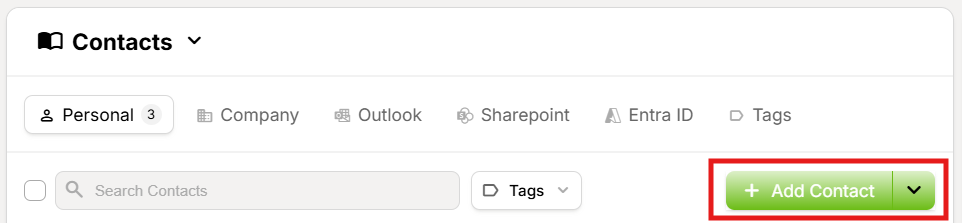
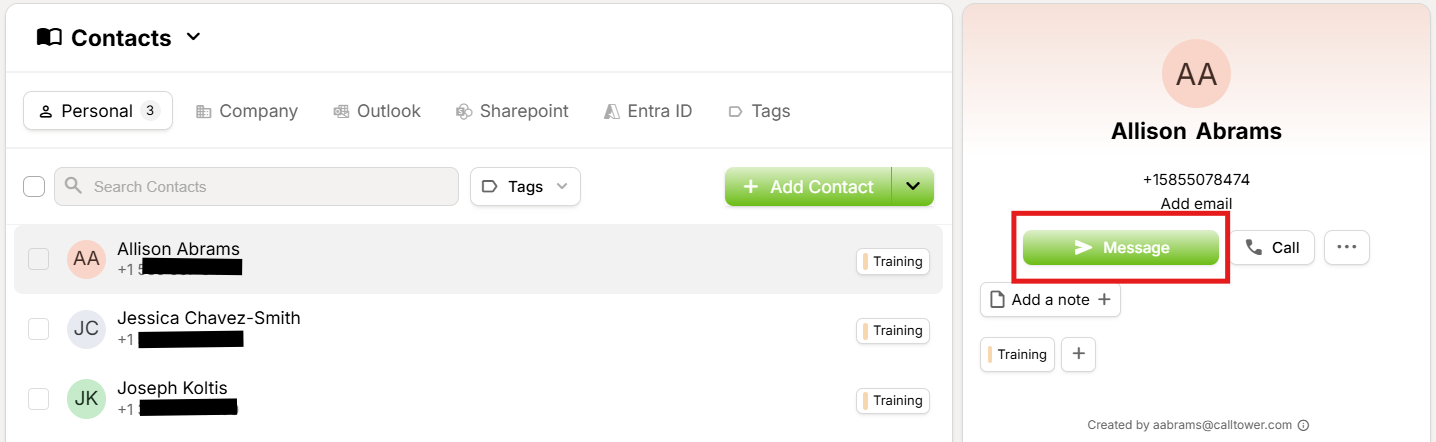
From the Chats dropdown, select Contacts. From there, click on the Add Contact button.
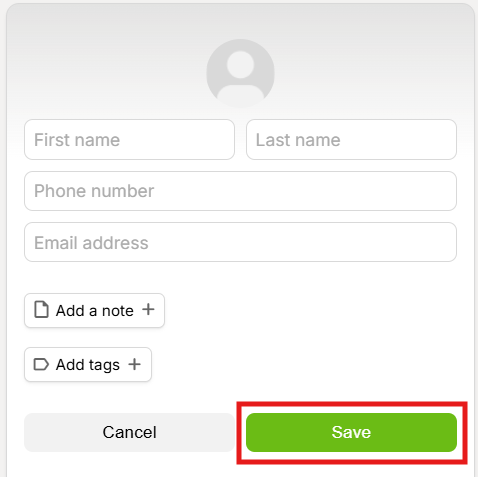
Enter the contact details, including the telephone number, and click on the Save Contact button to store the contact. Remember, telephone numbers must be entered in E.164 format, meaning the plus sign, country code, and full telephone number. For US numbers, that means +1-XXX-XXX-XXXX (without the dashes.)
Then select Save Contact
Edit an Existing Contact
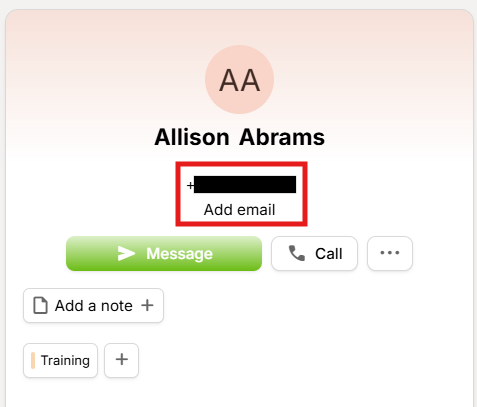
Select the contact from the list of contacts. Then, in the righthand panel, click on the field you wish to edit (phone number or email address). This makes the field editable.
Delete an Existing Contact
Select the contact
Next select the [...] three dot option on the righthand panel displaying the contact information.
Next, choose the Delete contact option
Import Contacts Using CSV
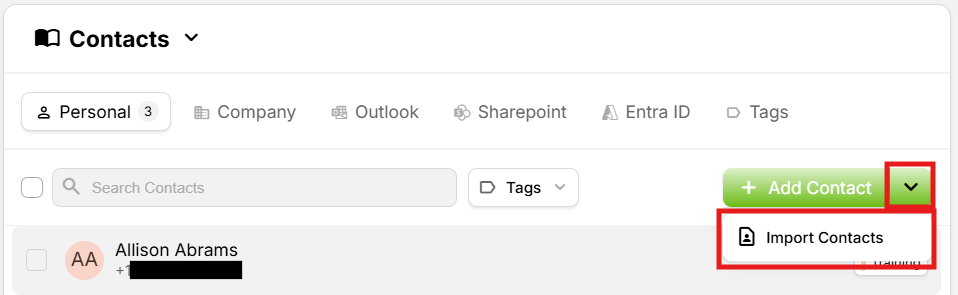
Click the dropdown next to the Add Contact button, then click Import Contacts.
Select the browse option to upload your file. CSV and XLS files are accepted.
Sending Messages to Contacts
Select the contact you wish to text and select Message on the righthand panel.